
AWS Cost Tracking Setup
Connect your AWS account to track infrastructure costs automatically. Follow these steps to configure billing data access.
AWS account with billing access, ability to create IAM roles, and an S3 bucket.
Step 1: Setup S3 Billing Backup
Configure AWS to export billing data to an S3 bucket using Legacy CUR export.
-
Go to Billing and Cost Management console
-
Navigate to Data Exports
-
Click the Create button

-
Select Legacy CUR export and provide an export name
Example export name:
paygent-billing-export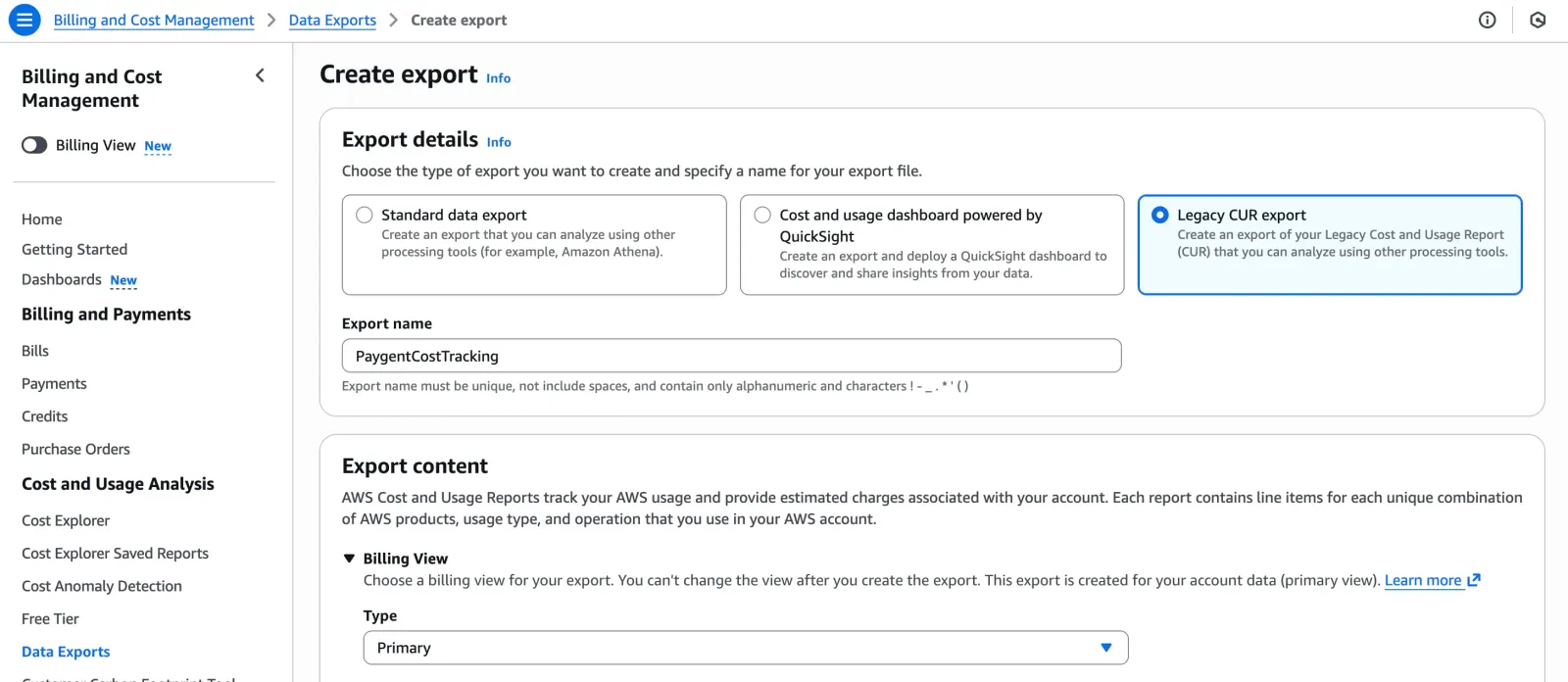
-
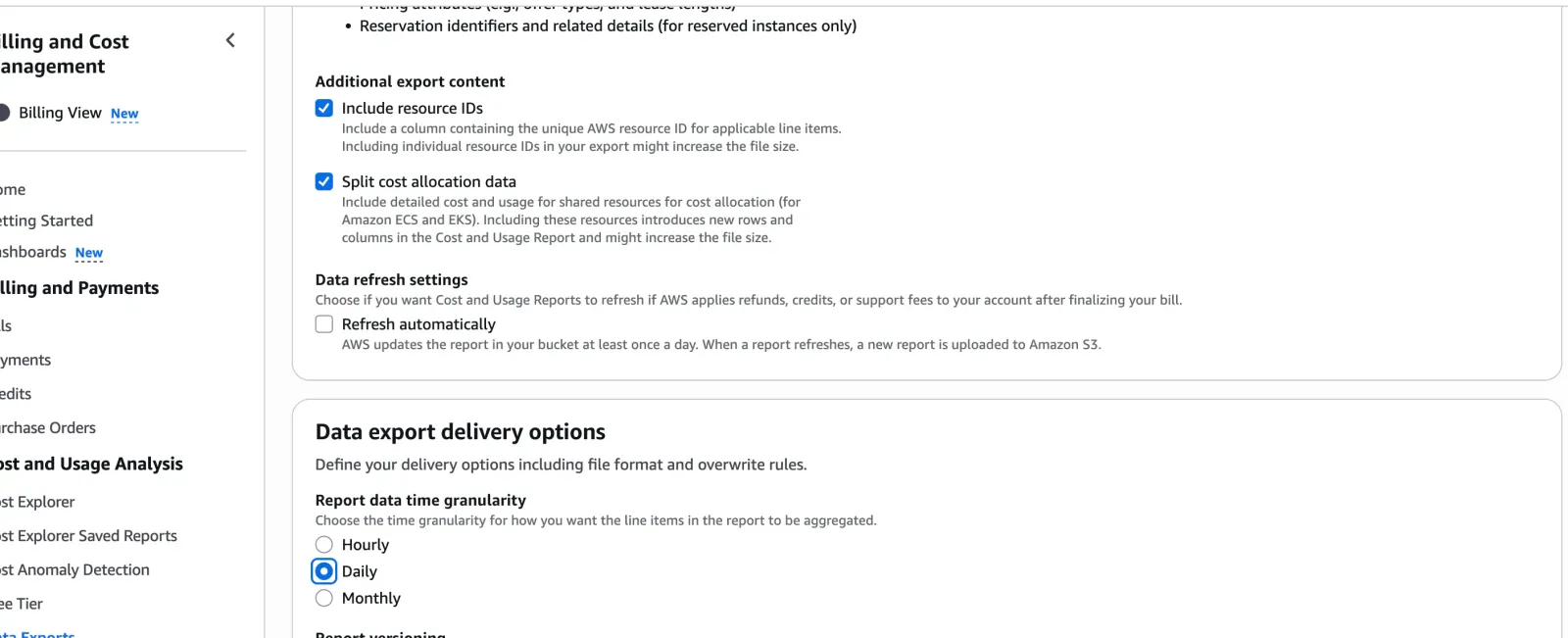
Configure export settings:
- ✓ Include resource IDs
- ✓ Split cost allocation data
- Data export: Daily
-
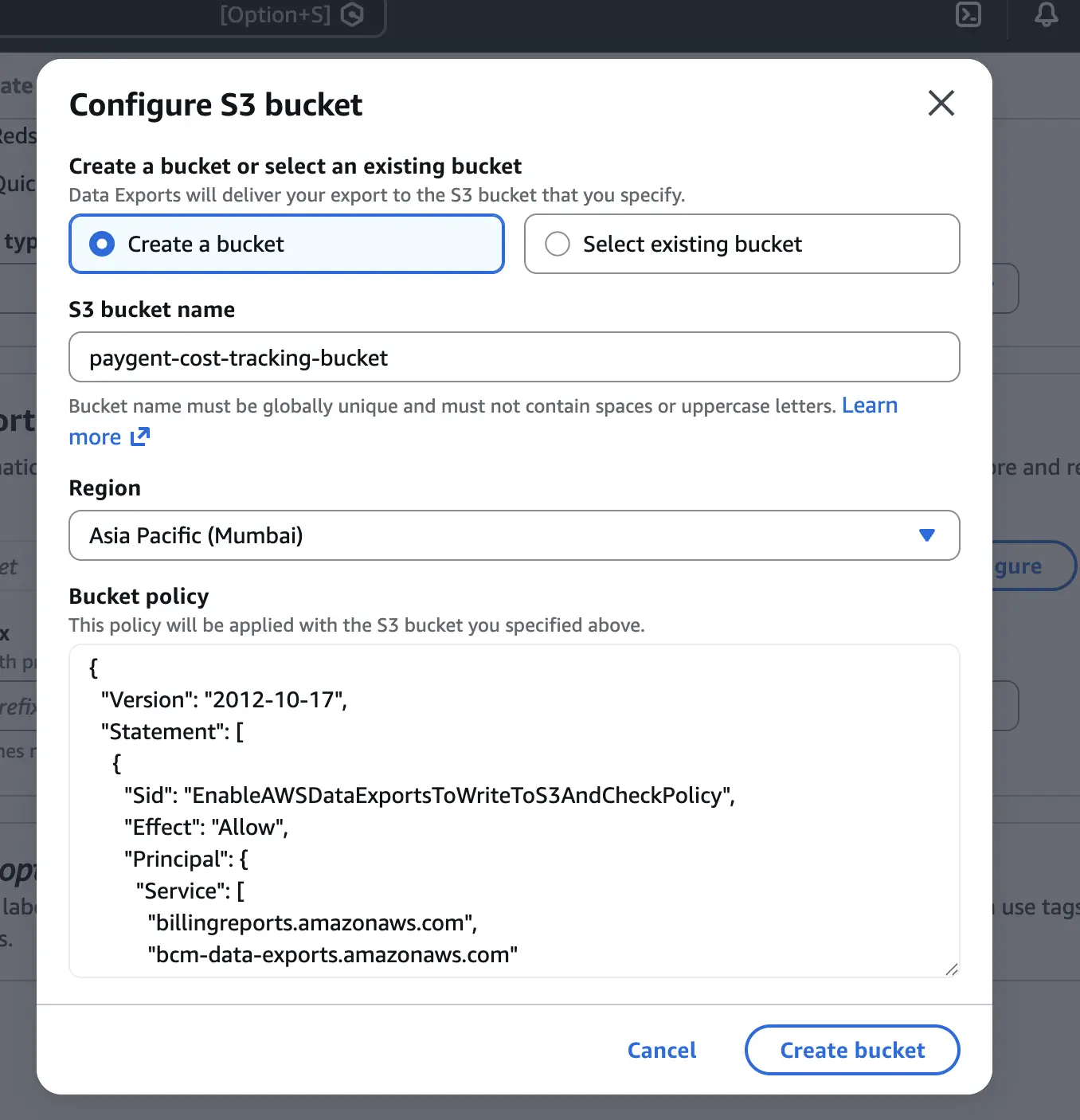
Configure S3 bucket for export storage
ImportantNote the S3 bucket name you create — you’ll need it in the next step!
-
Give the S3 path prefix — paygent-cost-tracking-2
-
Complete the export creation and wait for it to be ready
Step 2: Generate CloudFormation Template
In the Paygent dashboard, navigate to Infra Cost and select the AWS tab.
-
Enter your S3 bucket name from Step 1
-
Click Generate YAML File
The template will download automatically with your specific bucket configuration
Step 3: Deploy CloudFormation Stack
Upload the template to AWS CloudFormation to create the IAM role.
-
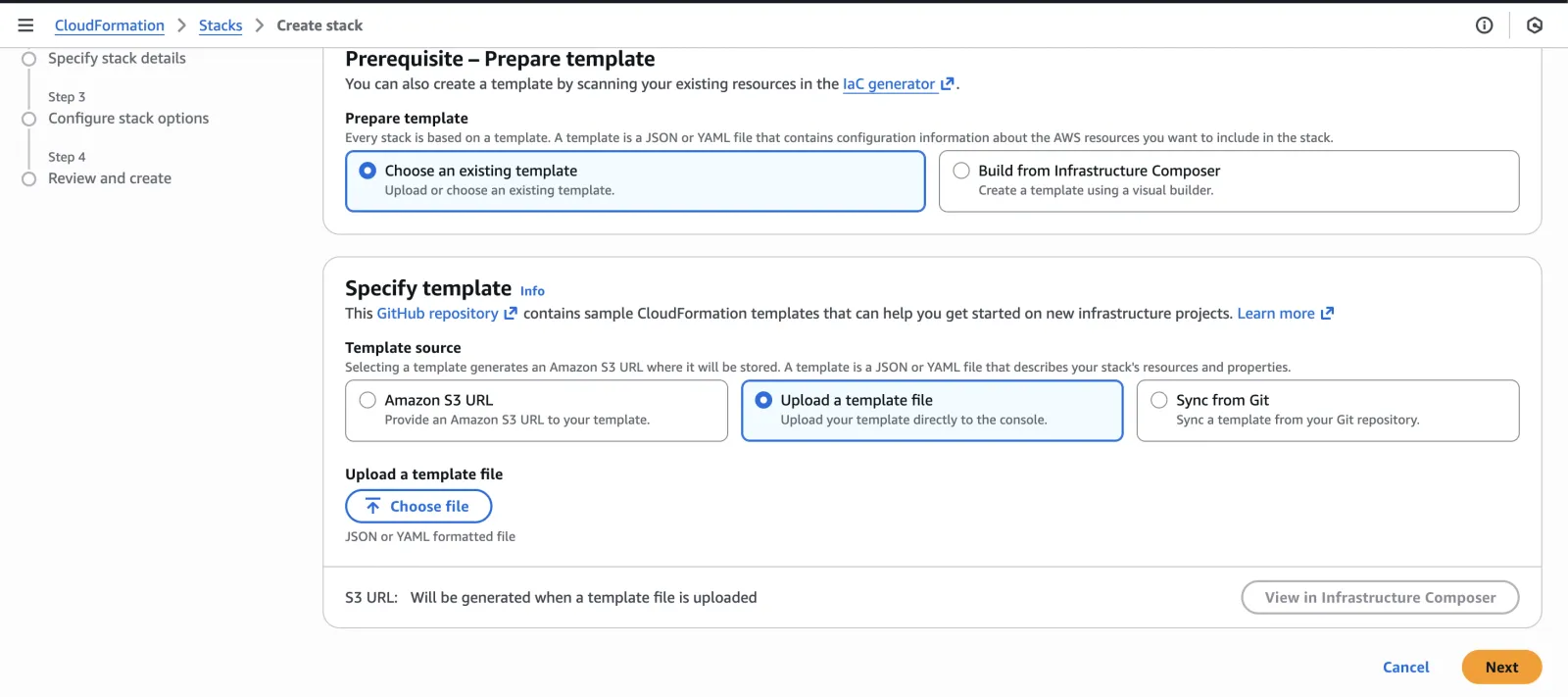
Go to CloudFormation console and click Create Stack → With new resources

-
Choose Template is ready → Upload a template file
Select the YAML file downloaded in Step 2, then give your stack a name
-
Follow the wizard to deploy (accept defaults)
Click through the configuration pages and acknowledge IAM resource creation at the end
-
Wait for stack creation to complete (Status: CREATE_COMPLETE)
⏱️ This usually takes 2–3 minutes -
After creation, go to the Outputs tab and copy the RoleARN value
Example:
arn:aws:iam::123456789012:role/PaygentCostTrackingRole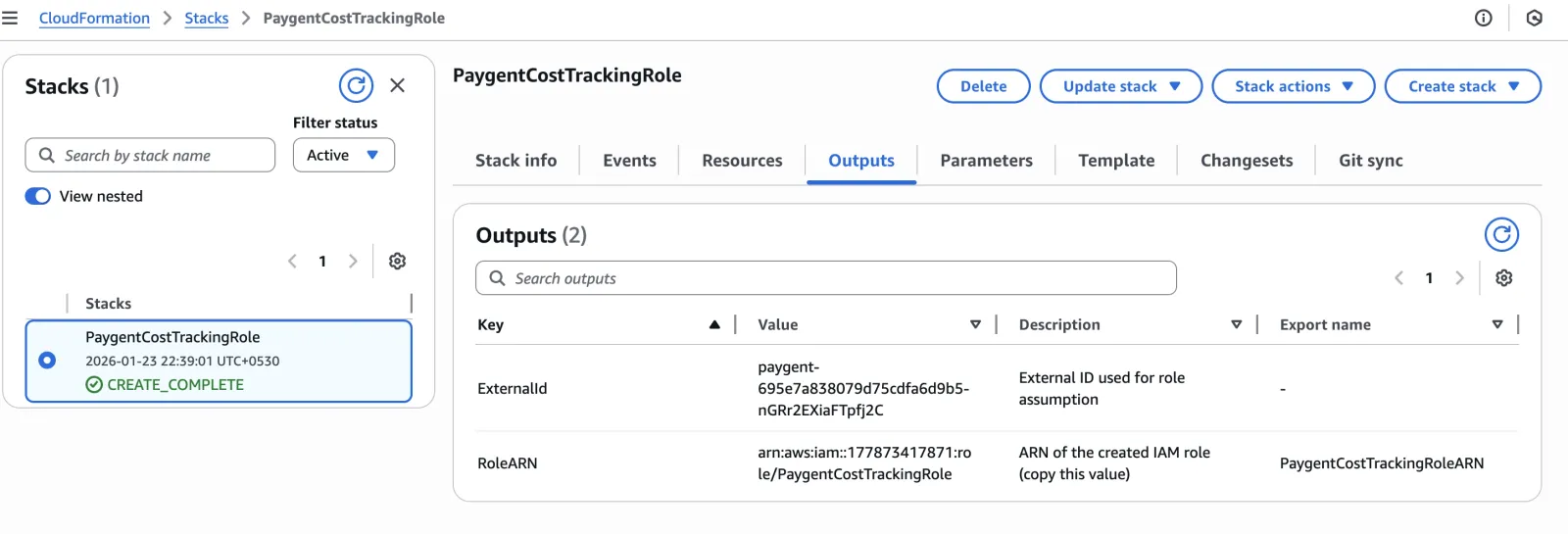
Step 4: Complete Configuration
Return to Paygent and complete the setup with your AWS role details.
-
Paste the Role ARN from CloudFormation outputs
-
Verify the External ID is auto-filled correctly
-
Confirm the S3 Bucket Name and Region
-
Click Complete Setup
Cost data will be available within 24–48 hours. Paygent will automatically sync your AWS billing data daily.
Troubleshooting
Role verification failed
Ensure the CloudFormation stack completed successfully and the External ID matches exactly. Check that the role has the correct trust policy.
S3 access denied
Verify the S3 bucket name is correct and the bucket exists in the specified region. Ensure CUR reports are being generated to this bucket.
No cost data appearing
AWS CUR reports are generated daily. Wait 24–48 hours after setup. Ensure your AWS account has actual usage to report.